Guide: How to use GTS
QUICK NAVIGATION
What is GamesToShare?
GamesToShare (GTS) is a platform where Steam users can share their libraries and wishlists to connect with others. Anyone with a Steam account can use it without logging in. The platform is free to use and ad-free.
Who is it for?
GTS was designed specifically for Steam users, although we are working on implementing new platforms. The ultimate goal is for users to connect through friend requests and discover other players with similar interests.
Browsing Offers
You can explore existing posts or create your own.
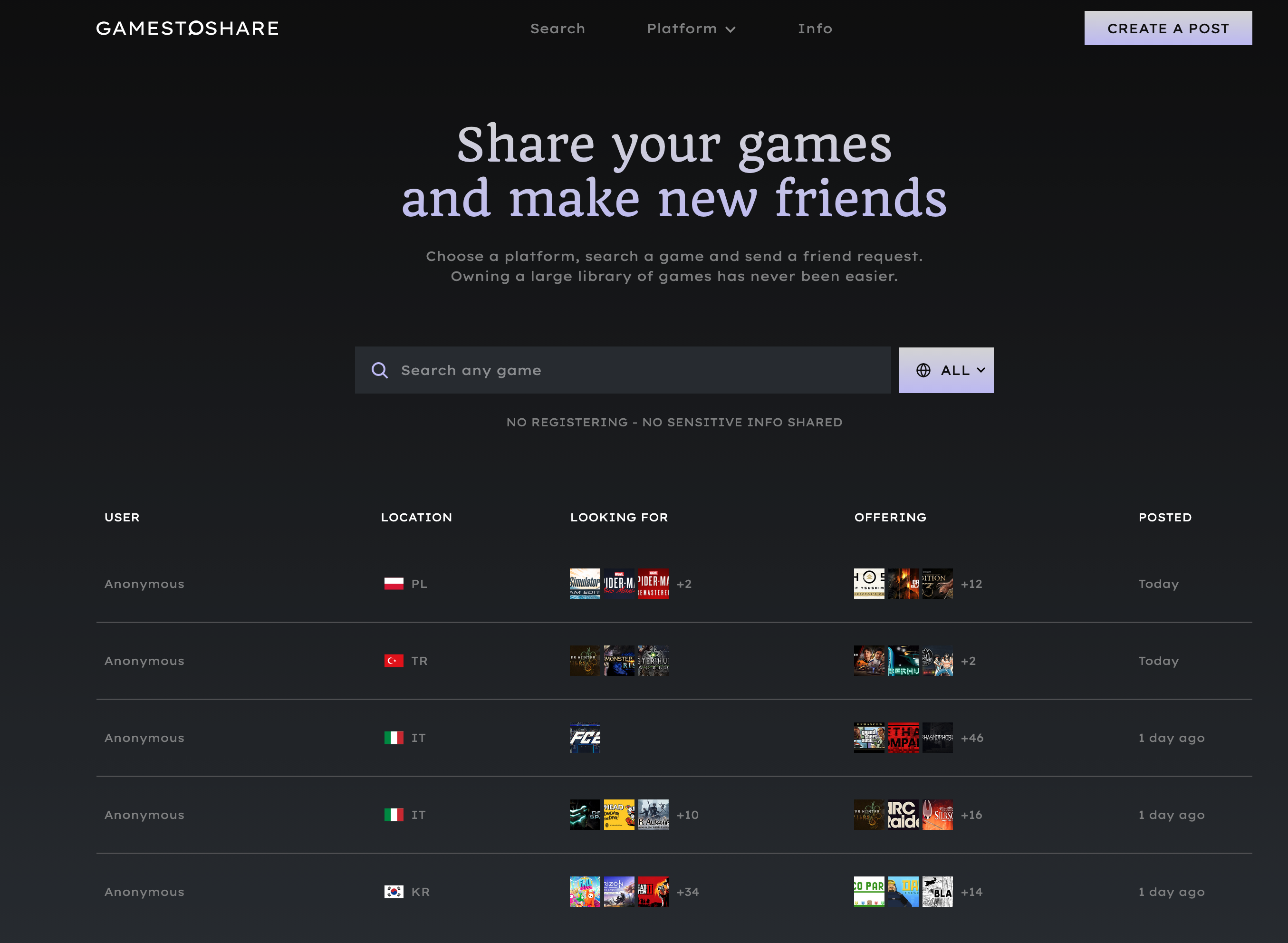
- Use the search bar on the homepage or the dedicated search page to look up specific games or sort posts by date.
- Click on a post to open it.
- If you're interested, you can send a Steam friend request directly from the post.
Additionally you can use the location filter to find friends close to you.
Sending a Request
On a post, accept the terms and press “Add on Steam”. GTS opens the poster’s Steam profile, in the Steam client if you have it installed, where you can send them a friend request.
Check their Wishlist first: if you own some of the games they’re looking for, say so in your request.
Creating a Post
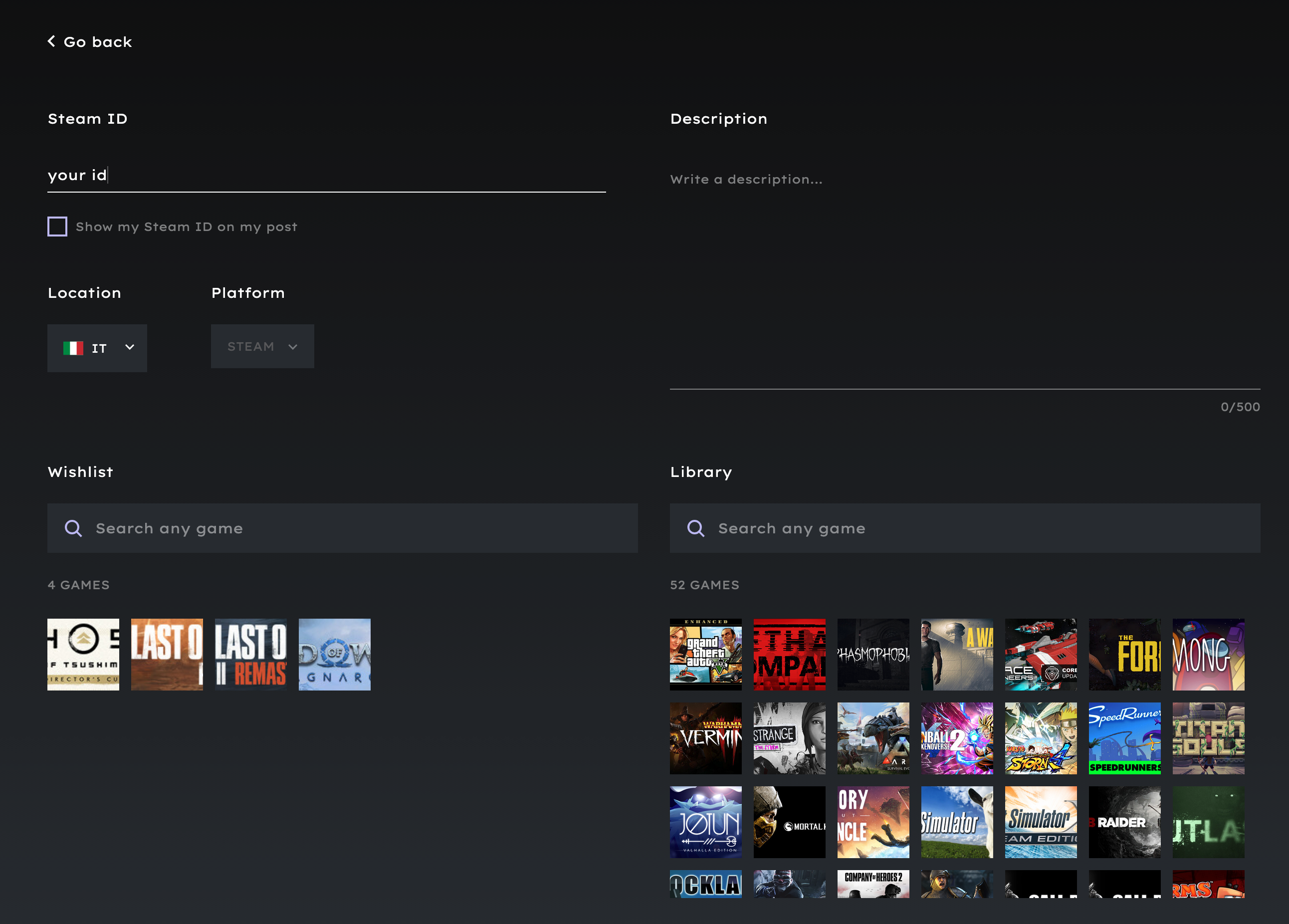
To publish a post, click the "CREATE A POST" button on the right side of the navigation bar. You'll be asked to fill in a few details.
Steam ID
This is the link displayed at the top of your Steam profile, for example:
https://steamcommunity.com/profiles/76561199382517994
Your Steam username is shown on your post, and anyone who sees it can send you a friend request.
Location
Choose the location of your Steam store region. If your location is already set on your profile, it will be retrieved automatically. Otherwise, you will have to select a location.
Platform
The platform currently supports Steam only. Additional platforms for consoles and PC are planned for future updates.
Description
Use this space to add helpful details about your post. You can mention your usual gaming hours, games you are currently playing, or preferred ways to be contacted.
Wishlist
Add the games you'd like to receive. If your Steam wishlist is public, GTS will import it automatically. You can add more titles using the search bar or remove any by hovering on them and clicking the X. Other users will see which games you’re looking for.
Library
List the games you've got. If your Steam library is public, GTS will import it automatically. You can add or remove games the same way as in the "Wishlist" section.
Verification Step
Before you post (or send an invitation), GTS needs to verify that you truly own the Steam account you have inserted. There's no registration or Steam login required. Simply place the provided verification code ("GTS") in your Steam profile bio. Once verified, your post will be published.
Frequent Asked Questions
The following information is general guidance about how Steam Family Sharing works on Steam itself. These features belong to Valve and are not part of GTS. GTS does not manage, automate, or provide Family Sharing.
How do I enable Family Sharing?
Log into Steam > Settings > Family > Authorize Library Sharing on this device.
How can I add people to my Steam Family?
You need to be friends first. You will see the eligible accounts under Settings > Family.
Is there a limit to the number of accounts I can share my Library with?
Yes, a Family Library can be shared with up to 5 accounts and up to 10 devices in 90 days.
Can I share a specific game?
Yes, you can share a specific game by flagging all the other games as private. This is a Steam feature and is not provided or managed by GTS.
Can I get banned from Family Sharing?
Offline and solo games are 100% safe, but you can get a VAC ban if your copy is used to cheat in a multiplayer game protected by Valve Anti-Cheat (VAC). Only the cheater and the owner of the copy will be affected by the ban.